Slow Android TV? Remove Bloatware With Claude Code Before You Buy a New One
Your Android TV got slow, the home screen is full of sponsored rows, and a new TV looks like the only fix. Before you spend money, it is worth knowing that you can remove bloatware from Android TV in about fifteen minutes with Claude Code, and undo every change if something breaks. This page covers what it costs, what you can honestly expect, and when buying a new TV really is the better call.
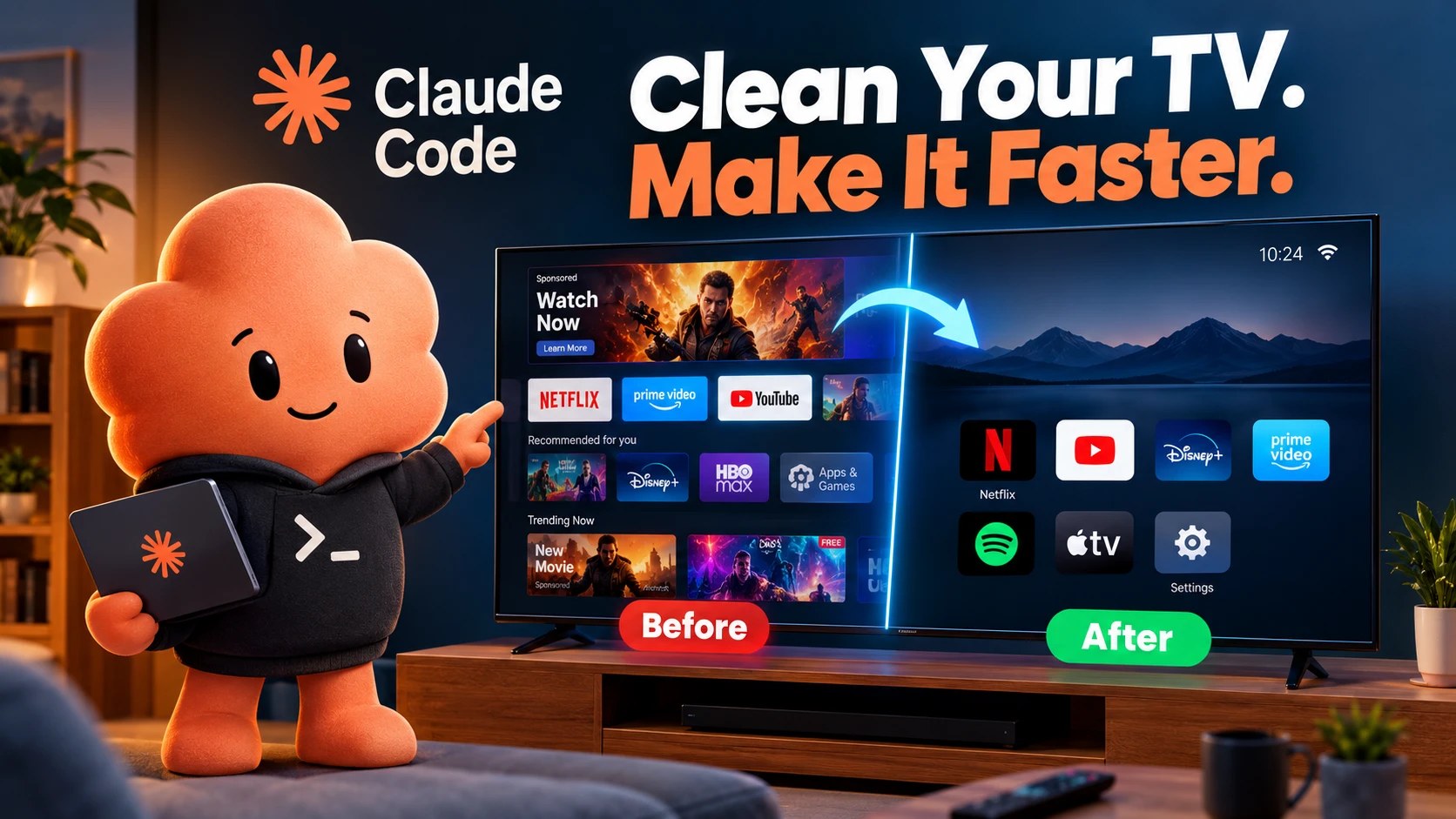
Here is the short version. Claude Code runs on your computer and talks to the TV over ADB, the same debugging link developers use. It disables apps you approve, in small batches, after making a backup. It never uninstalls anything, so one word brings every app back.
Should you replace a slow Android TV or clean it first?
Cleaning first is almost always the cheaper experiment. The cleanup needs a computer you already own, a Wi-Fi network you already have, and a Claude plan that includes Claude Code. A replacement TV costs far more than that, and it will arrive with its own sponsored rows and preinstalled apps.
The real question is what is actually wrong. If the pain is a cluttered home screen, constant promoted banners and apps you never open, cleaning can help a lot. If the pain is a TV that runs out of storage every week, or one that stutters in every app, including the ones you installed yourself, the hardware may simply be tired.
I would try the cleanup before deciding, for one more reason: nothing is permanent. Because the method only disables apps, you can restore everything and be exactly where you started.
What does Claude Code cost for this job?
Claude Code is not free. It needs a paid Claude plan (Pro, Max, Team or Enterprise) or a Console account, and the free Claude plan does not include it. Plan prices change, so check the current numbers on the official Claude pricing page instead of trusting a figure written here.
For this job you need very little usage. The task is one short session: connect, list packages, sort them into groups, and disable a few batches. There are no long coding runs.
The other costs are time and care. Plan for about fifteen minutes, plus a few minutes after each batch to test your remote, HDMI input, Netflix or YouTube, and sound.
If you would rather not pay for anything, there is a free route. You can open Settings, then Apps on the TV, and disable preinstalled apps one by one. It is slower and gives you no backup or restore script, which is why I prefer the guided method.
What can you realistically expect?
Expect a cleaner screen first and a faster feeling second. I do not promise a speed jump. In the one hands-on Fire TV test I found, only about 60 MB of memory was freed, and the creator said the real gain was the experience rather than the number.
What usually improves is the home screen. With sponsored rows gone and a lighter launcher, there is less to load and less to scroll past. Fewer apps waking up in the background also helps a little.
There is a real risk, too. A TCL owner reported losing HDMI after core packages were disabled. That is why the method protects remote, Bluetooth, input, keyboard, Google Play and location services, and why you test after every batch of ten.
Watch the 50-second walkthrough below:
The cleanup in seven steps
The full walkthrough has commands for Windows, Mac and Linux. Here is the outline so you can judge the effort:
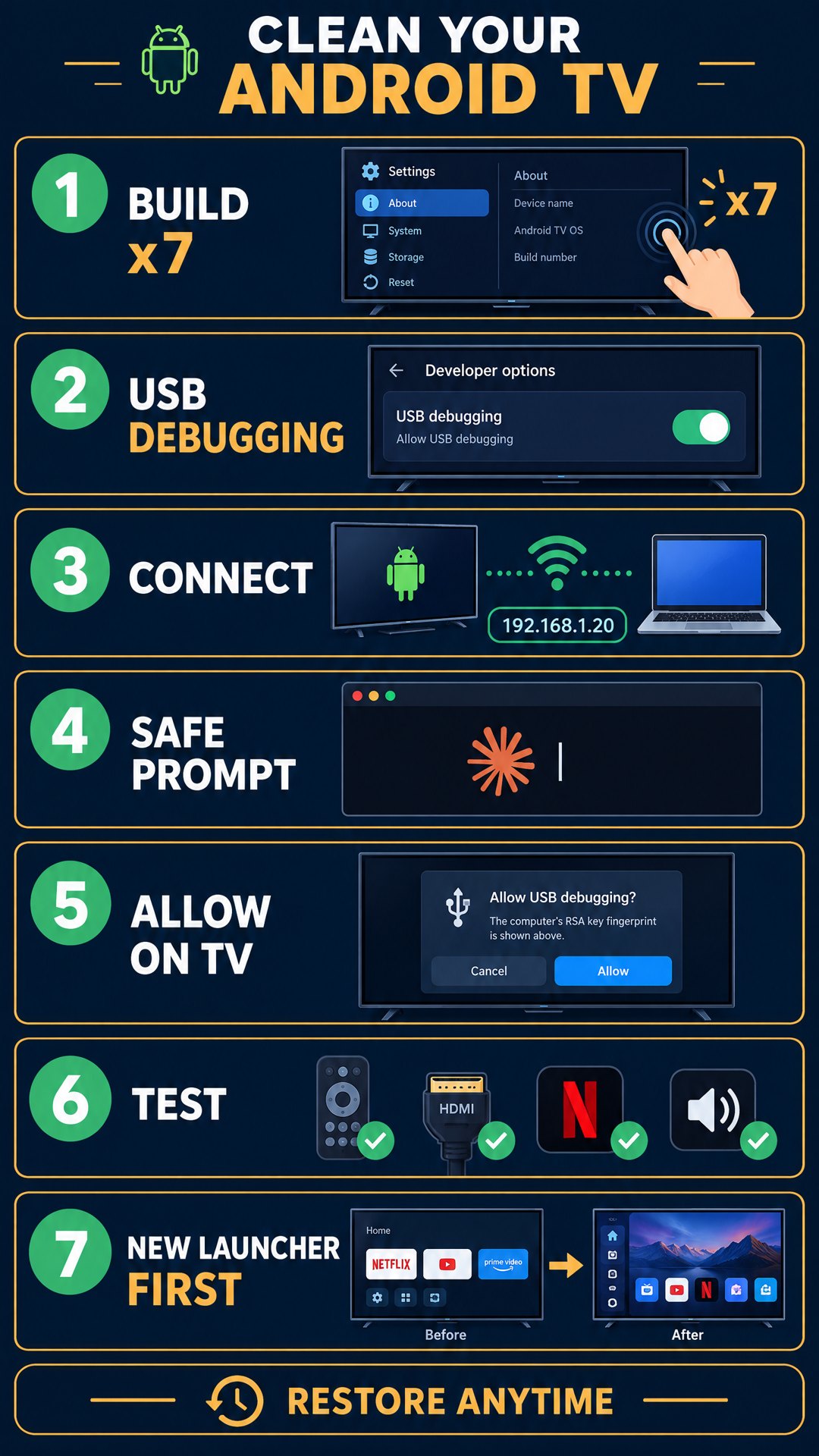
- On the TV, open Settings, System, About, and tap Build seven times.
- Switch on USB debugging in Developer options.
- Connect your computer to the TV over the same Wi-Fi with ADB.
- Install Android platform tools and Claude Code on your computer.
- Paste the safe prompt with your TV model and IP address. It says: disable only, never uninstall, ten apps at a time, restore script first.
- Accept the pop-up on the TV, review the list, and approve only ads and tracking.
- Test after each batch, and install a replacement launcher before the old home screen is disabled.
Finally, switch USB debugging off again.
When is buying a new TV the better call?
Be honest with yourself about three situations. First, if storage is full even after removing apps you installed, the TV may be too small for the apps you use. Second, if the picture or Wi-Fi hardware is failing, no software cleanup will fix it. Third, if the TV no longer gets the apps you need, replacing it may be unavoidable.
On the other hand, a TV that is only cluttered usually deserves a cleanup first. Ads and junk apps are a software problem, and software problems are cheap to try to fix.
A simple way to decide today
Take ten minutes before you shop. Write down what annoys you most: the ads, the slowness, the clutter, or a hardware fault. If the answer is ads or clutter, run the cleanup. If you still hate the TV after a week, you have lost nothing but an afternoon and you can shop with a clearer idea of what was wrong.
Keep your restore script either way. If you later sell or gift the TV, restoring the disabled apps leaves it in its original state.
Which TVs does this work on?
It works on Android TV and Google TV, including many Sony, Philips, TCL, Hisense and Xiaomi models, the Nvidia Shield and Chromecast with Google TV. It does not work on Samsung Tizen, LG webOS or Roku, because they do not use ADB. Fire TV is similar, but the package names differ.
Quick answers
Will it void my warranty? I have not found an official statement either way. The method disables apps and never touches core packages.
Can I undo it? Yes. Tell Claude to restore, or run the restore script it wrote at the start.
Is it worth it? If a cleaner, less ad-heavy home screen is worth about fifteen minutes to you, yes. If you expect a brand-new TV experience, no.
Ready to try it? Follow the complete guide to remove bloatware from Android TV with Claude Code, with every command and the safe prompt.


Comments
Post a Comment